 English
 Русский
Wallet and invoices
Purchases, renewals, and add-ons are paid from your account balance. The wallet is where you top it up, save cards for automatic payments, and review every transaction.
Adding funds
Open in Dashboard- Choose an amount
Pick $50, $100, $250, or $500, or enter your own. The form shows what your balance will be after the top-up and which upcoming charges it covers.
- Choose a payment method
Cryptocurrency is credited instantly and doesn’t require verification. Credit/debit cards (Visa, Mastercard, and others) require a one-time identity verification. Card payments have a payment gateway switch: pay with Stripe, Apple Pay, or PayPal, whichever you prefer, by choosing it under the payment method.
- Pay
Click Add funds and complete the payment on the payment processor’s page. If you leave a payment unfinished, the wallet shows it so you can pay or cancel it later.
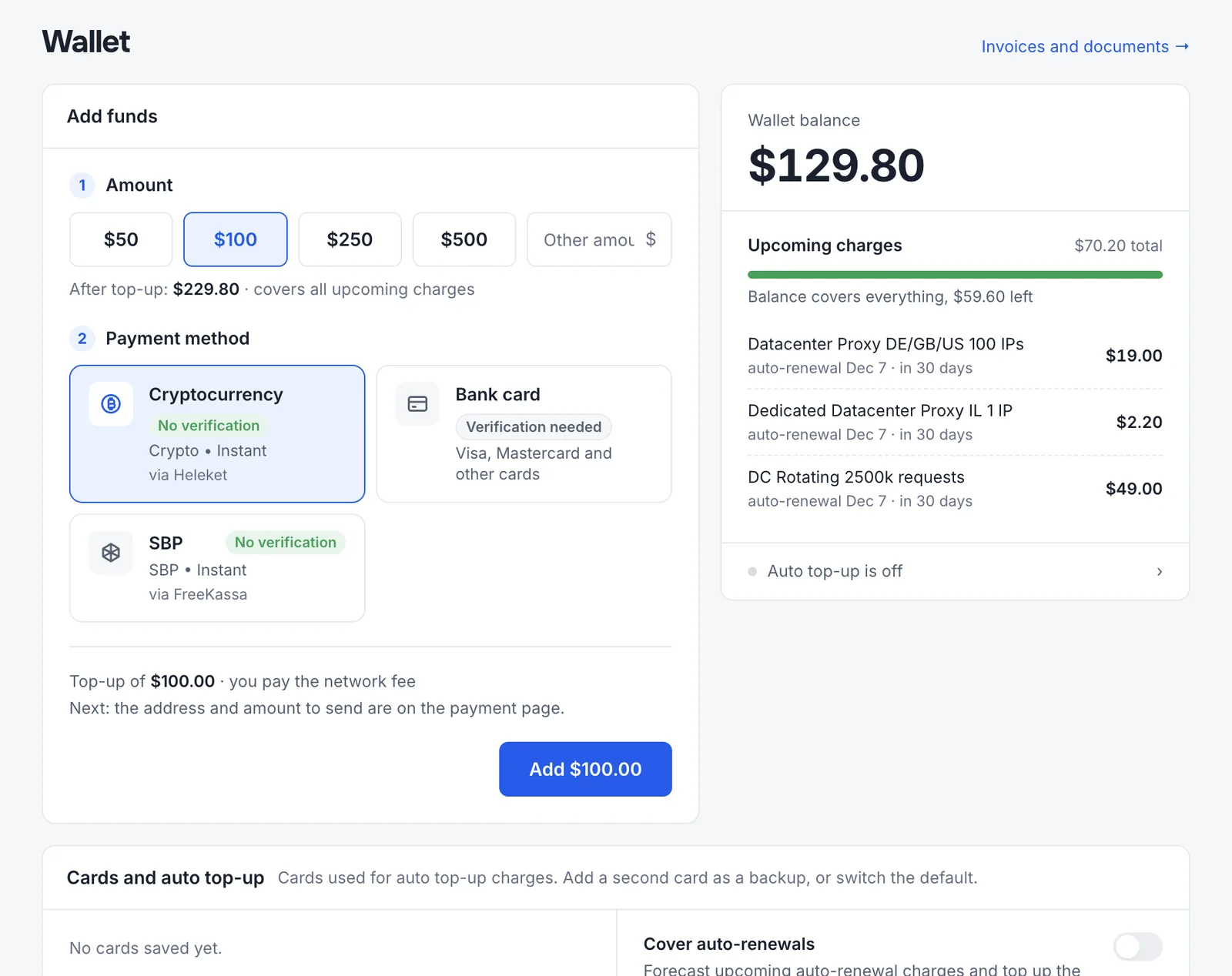
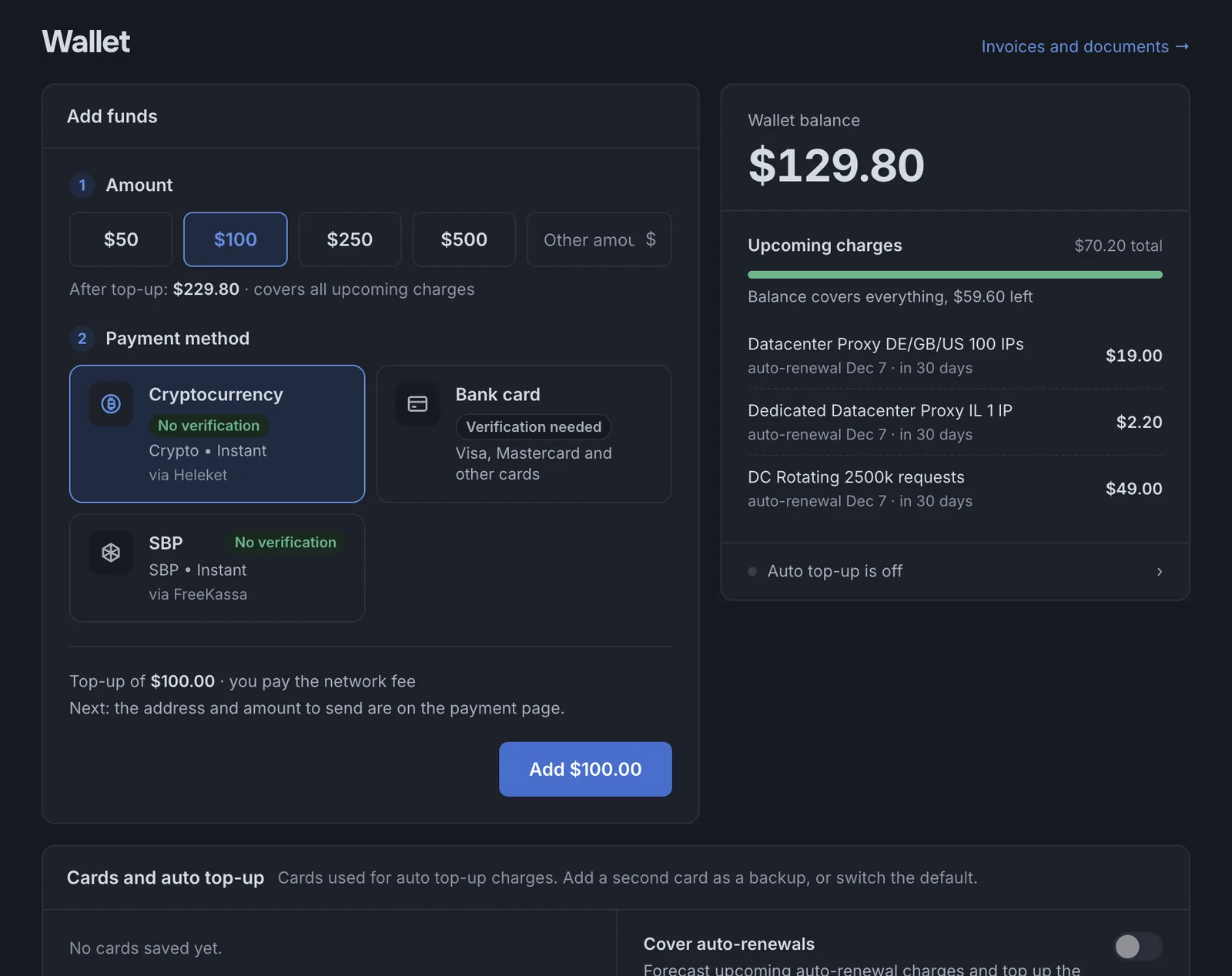
Upcoming charges
Renewals due in the next 45 days, so you can see how long your current balance will last.
Cards and auto top-up
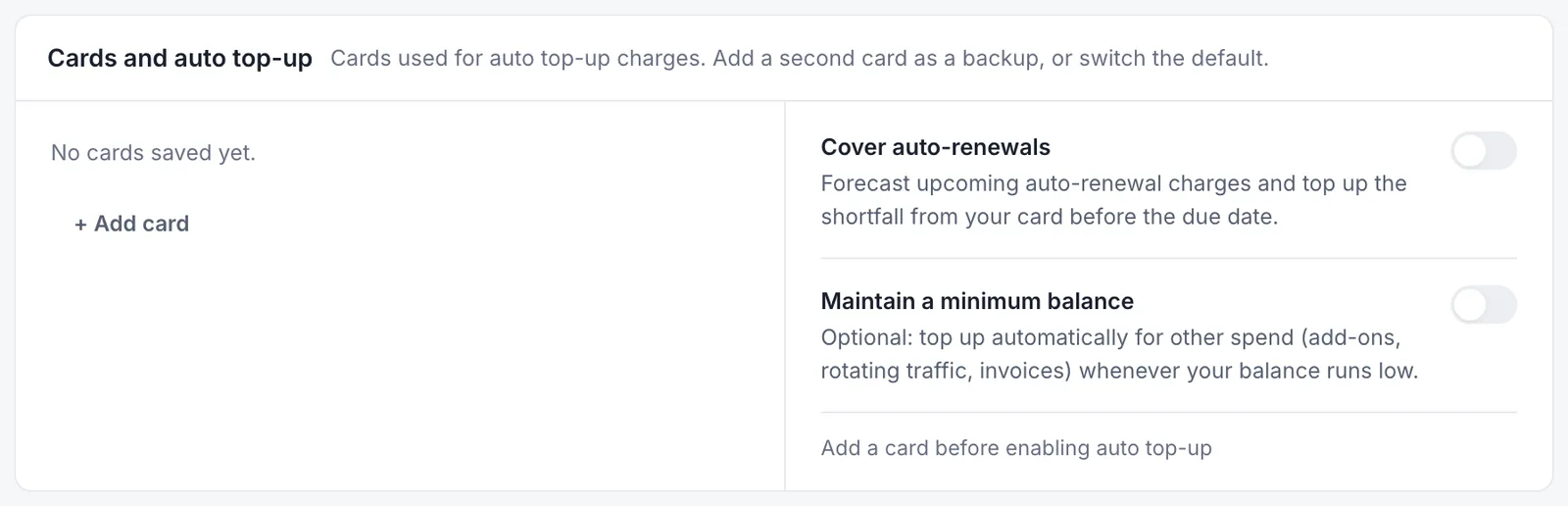
Auto top-up charges a saved card so your services don’t stop for lack of funds. Both switches stay inactive until you save a card.
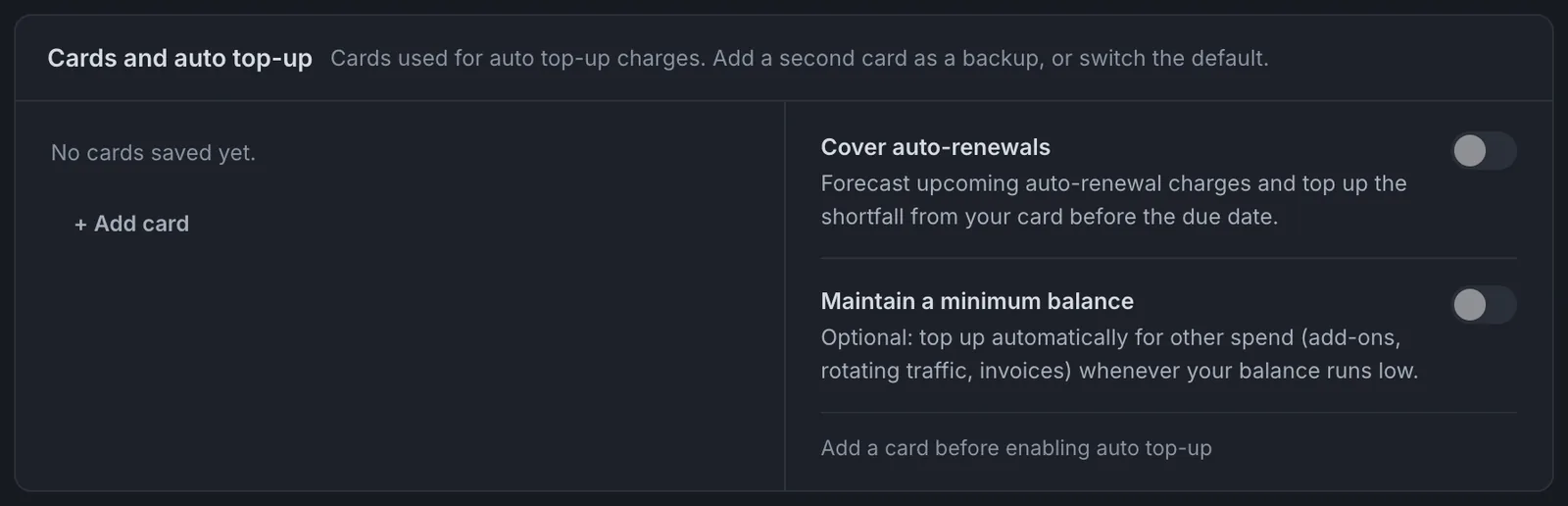
- Verify your identity
Saving a card requires a quick liveness check on the Verification page. No documents are needed: a selfie from your camera confirms that a real person is in front of it. It usually takes a few minutes. Cryptocurrency top-ups usually don’t need it. If you click + Add card before the check, the card isn’t saved; complete the verification and try again.
- Save a card
+ Add card opens the card form of our payment processor. The saved card then appears in the list on the left.
- Choose a mode
You can turn on either mode or both:
- Cover auto-renewals: we forecast your upcoming auto-renewal charges and, before the due date, charge the card for the amount your balance is short.
- Maintain a minimum balance: you set a threshold ($1 to $100) and a top-up amount ($5 to $500). Whenever your Dashboard balance drops below the threshold, that amount is charged to the card and added to your balance, at most once a day. Your balance then always covers other spending too: add-ons, extra rotating credits, and invoices.
Add a second card as a backup in case the first one is declined, or switch the default card at any time.
Transaction history
Every top-up, charge, and bonus, with filters (All, Top-ups, Charges, Bonuses), search by description, a filter by service, and CSV export. From a service page, Service charges in the wallet opens the history already filtered to that service.
Invoices
Open in DashboardEach purchase and renewal creates an invoice with a number, purpose, date, amount, and status. Filter by Due or Paid, search by number, service, or amount, and download the PDF.
- Renewal invoice. If auto-renewal is off, we issue an invoice before the renewal date. Pay it from the service menu or the invoice page.
- Violation invoice. Issued if a service is used against our Terms of Use. Services may be suspended until it’s paid.
For companies
Open in DashboardCompanies can fill in their own details and get invoices and payment receipts issued to the company. Open Settings → Profile:
- Billing profile
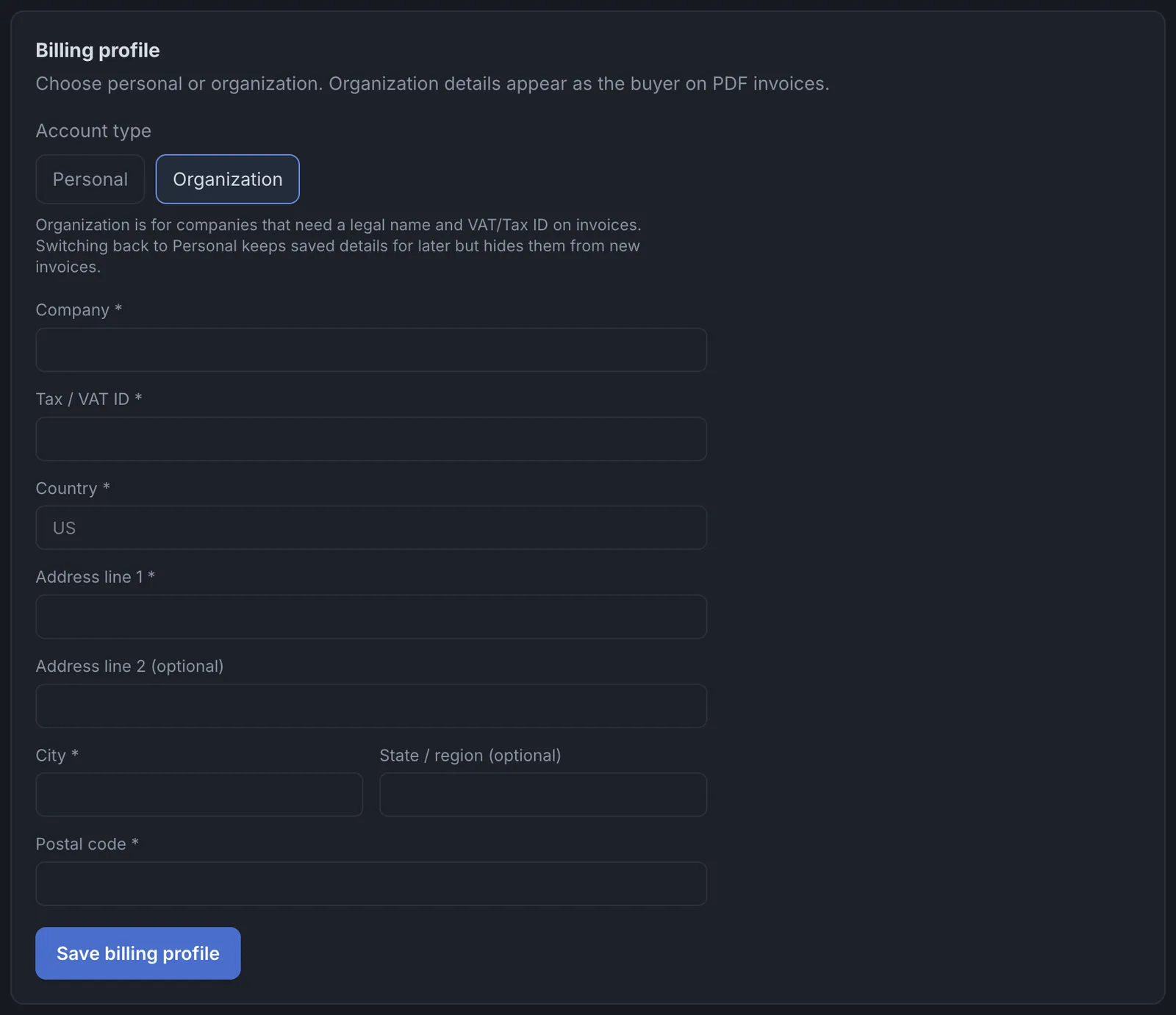
Set Account type to Organization and fill in the company name, tax or VAT ID, country, address, city, and postal code, then click Save billing profile. From then on, these details appear on PDF invoices as the buyer.
- Invoice details
Need more on the invoice, such as a registration number? Add up to five label/value pairs with Add field and click Save details. They’re printed on USD bank-transfer invoices as buyer details.
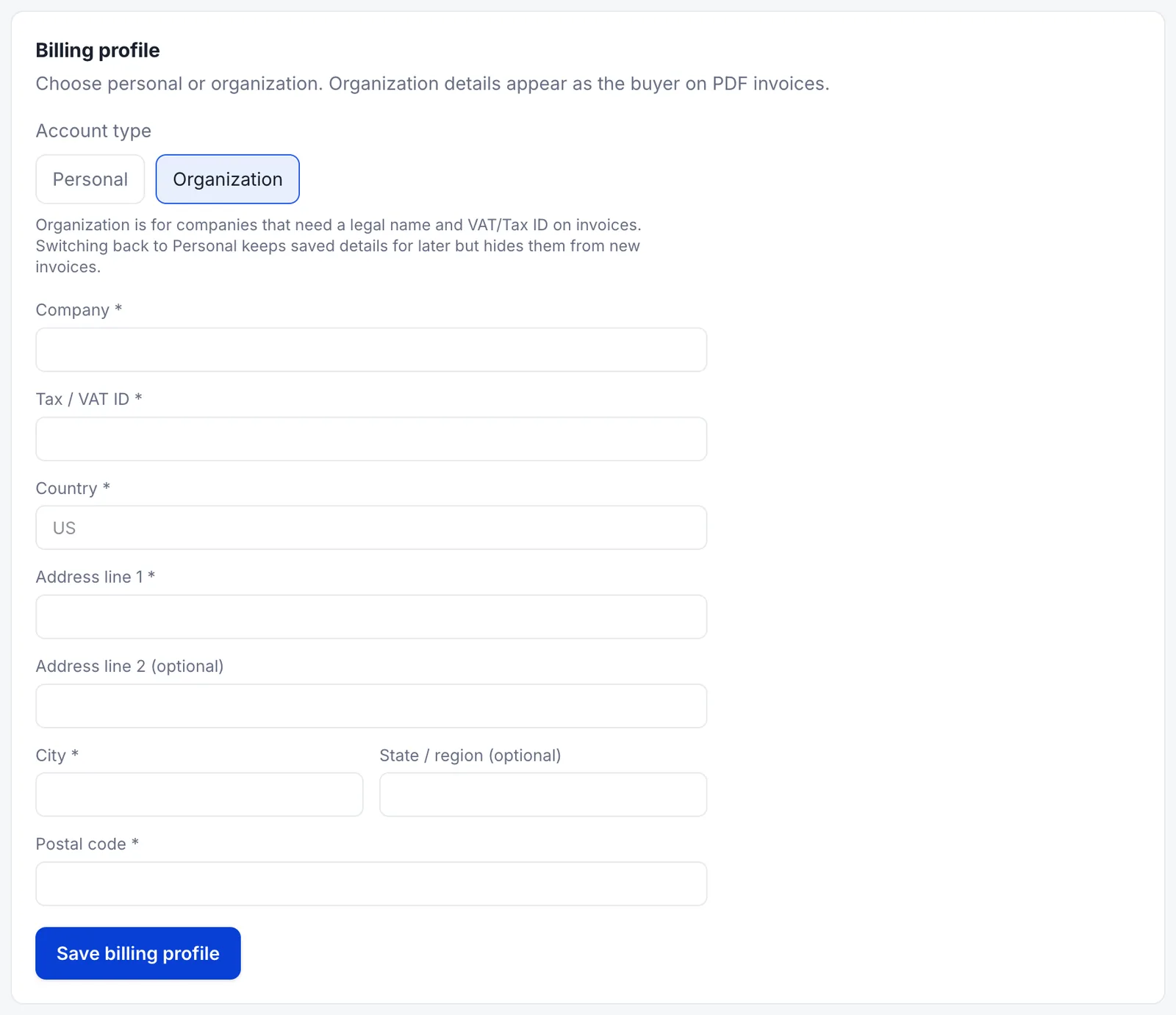
Switching back to Personal keeps the saved details but hides them from new invoices. To pay by bank transfer under a contract with all supporting documents (invoices, receipts), see PapaProxy.net for businesses or contact support.
Last updated: November 9, 2026.