 English
 Русский
Rotating proxies
A rotating plan has no IP list. You connect to one gateway hostname, and the system selects an exit IP from the pool for each request or keeps one IP for a sticky session.
Plan summary
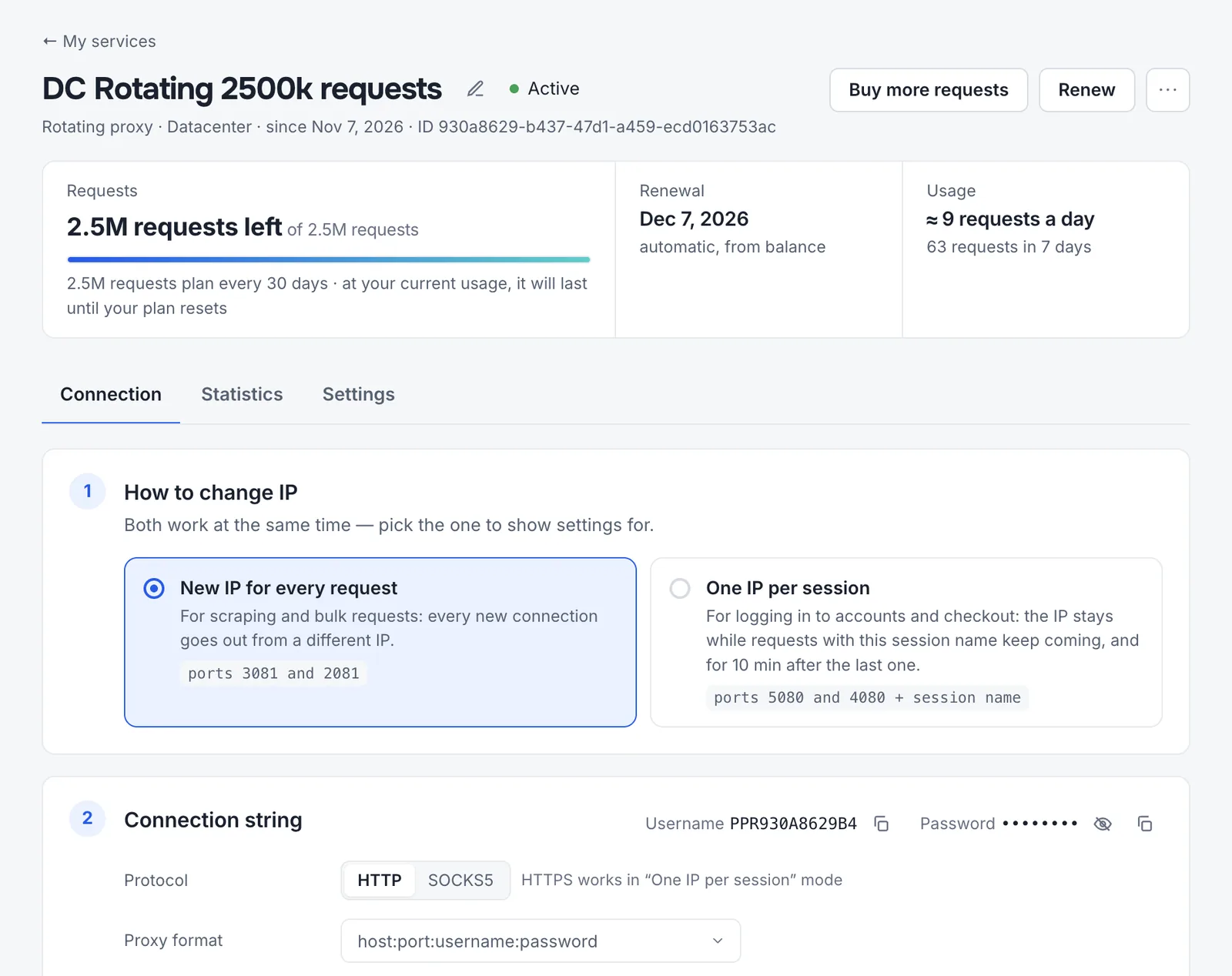
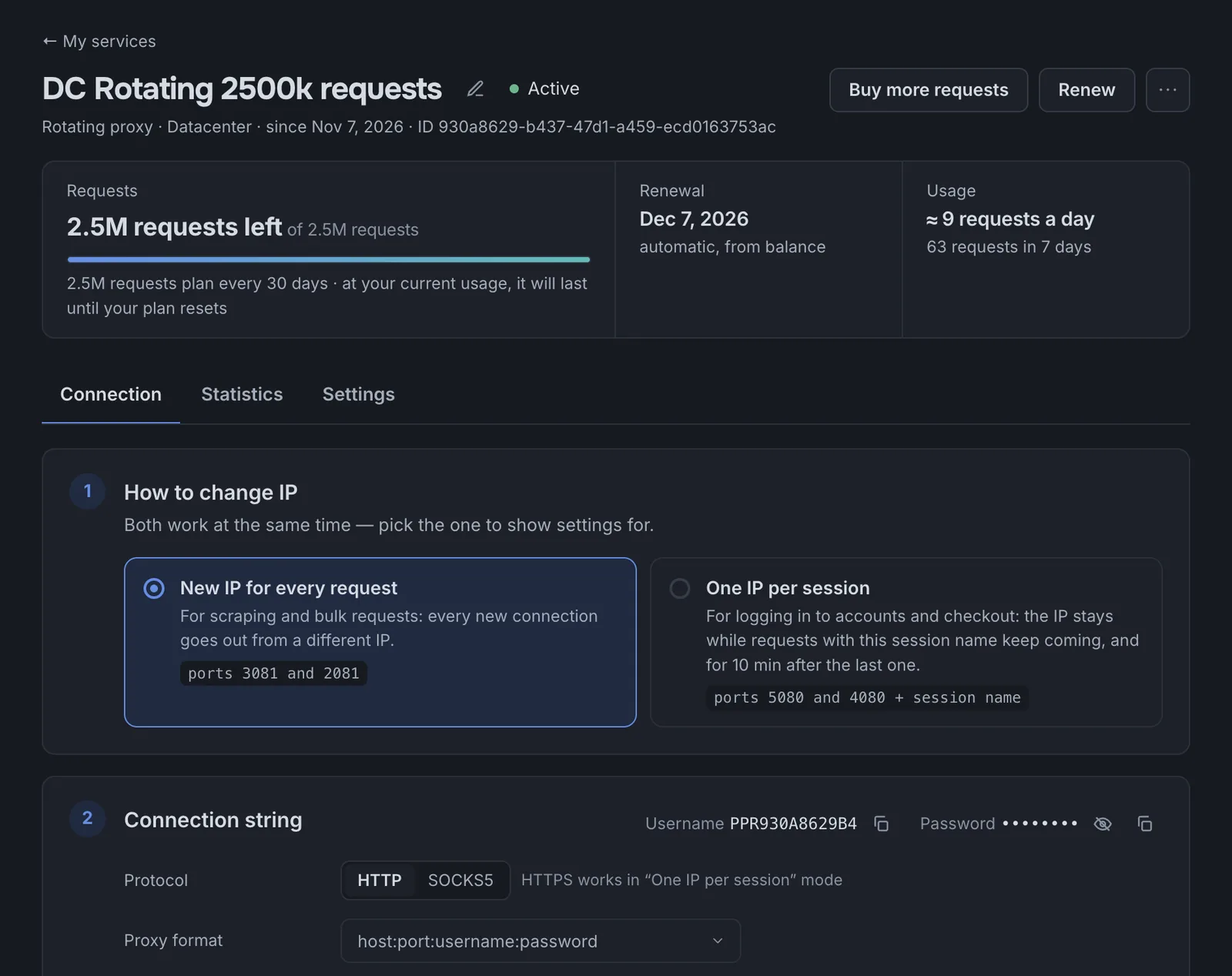
Open in DashboardRotating plans are billed per request: each billable proxy request uses one credit, and bandwidth isn’t limited. The service header shows the credits left out of your plan, the plan size per 30 days, the renewal date, and usage over the past 7 days. Buy more requests and Renew are right next to the title.
Step 1. How to change IP
Both modes work at the same time on the same credentials. Pick one to see its settings:
New IP for every request
For web scraping and bulk requestsEvery new connection exits from a different IP. Use the per-request ports shown on the card (HTTP and SOCKS5).
One IP per session
For account logins and checkoutAdd a session name to your username. The IP stays the same while requests with that name keep coming, and for 10 minutes after the last one. Different names get different IPs.
Step 2. Connection string
- Credentials. The username and password are shown at the top; click the eye icon to reveal the password.
- Protocol. HTTP or SOCKS5. HTTPS is available in the “One IP per session” mode.
- Format.
host:port:username:password,username:password@host:port, orprotocol://username:password@host:port. The ready-to-use string is copied with the real password. - Session names. In sticky mode, enter a session name (Latin letters, digits, and
_). To give each anti-detect browser profile its own IP, generate several strings at once: each gets a different session name. - Extra ports work the same way as the main one, if your software needs several.
Sticky sessions step by step
- Select One IP per session
The card shows the sticky-session ports (HTTP and SOCKS5); the connection string below switches to them.
- Enter a session name
The name is appended to your username as
-session-name, for examplePPR930A8629B4-session-acc1. One name keeps one IP; a different name gets a different IP. Use one name per account you work with. - Copy one string or many
Copy copies the ready-to-use string. For anti-detect browser profiles, enter how many you need and click Copy 10 strings (or download them as .txt): each string gets its own session name, so each profile gets its own IP.
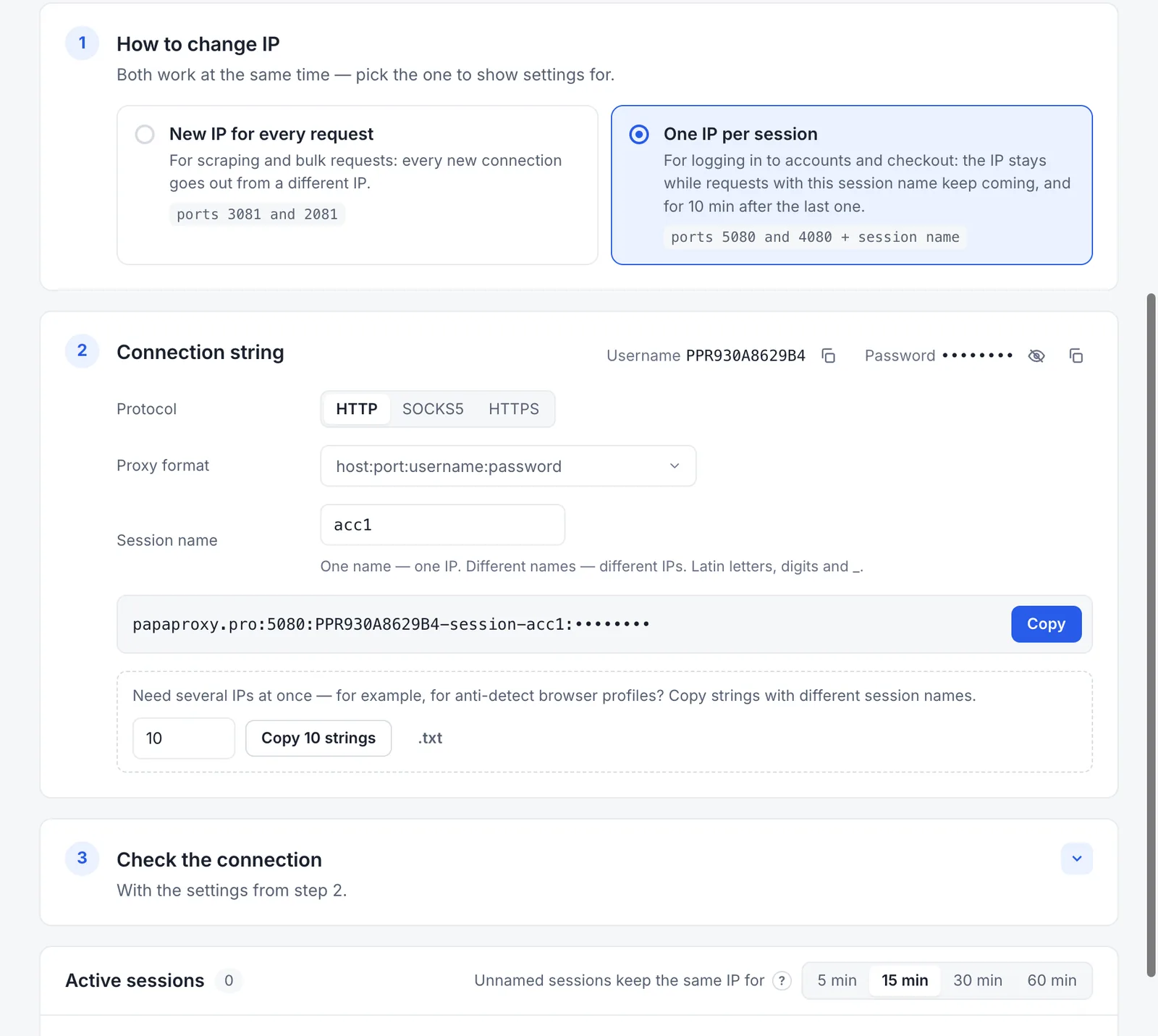
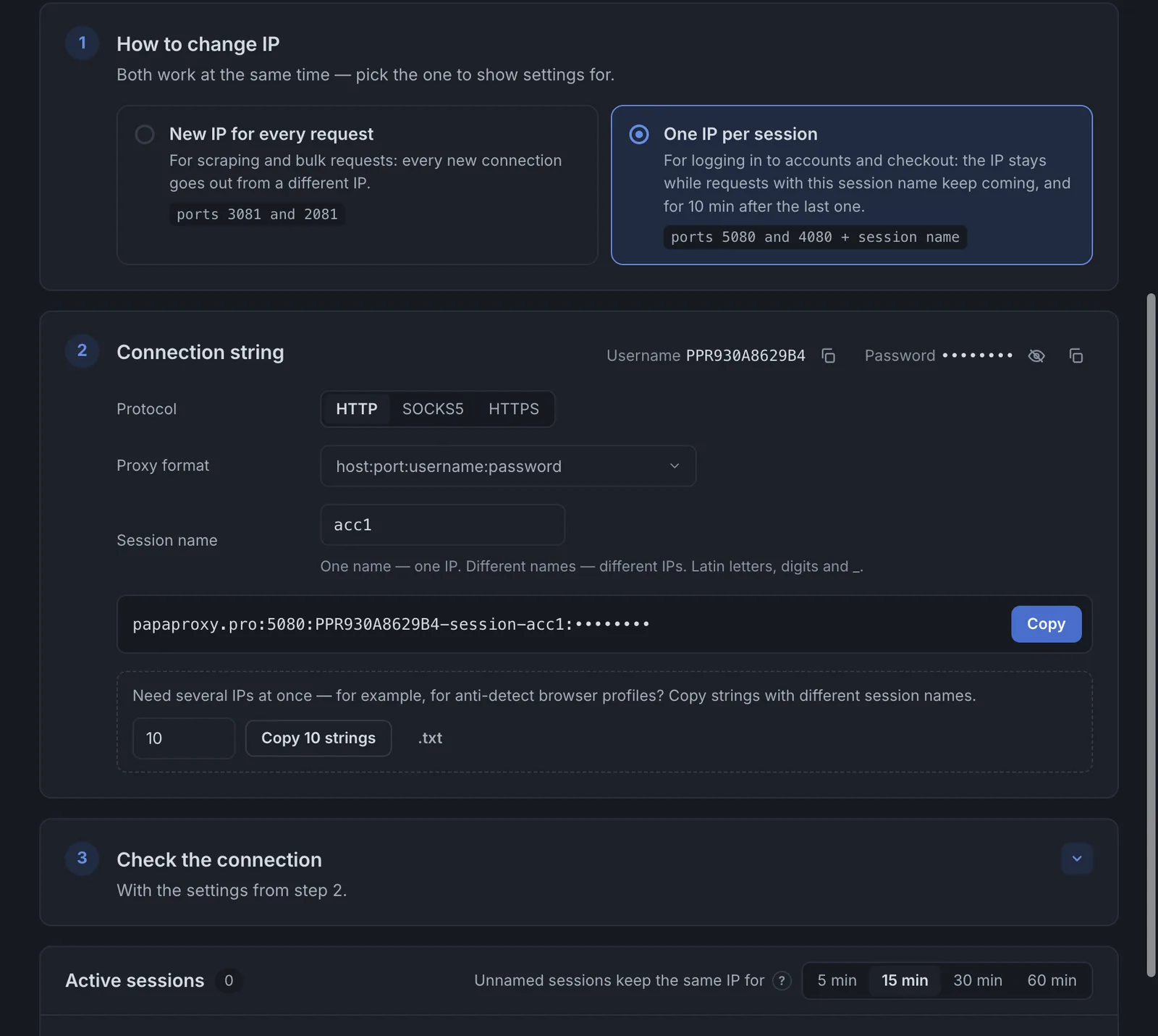
Below the connection check, Active sessions lists the sessions that are holding an IP right now. A session appears there after its first request. For requests sent to the sticky ports without a session name, choose how long they keep the same IP: 5, 15, 30, or 60 minutes.
Step 3. Check the connection
The check uses the settings from step 2 and explains common problems: 407 Proxy Authentication Required, an IP that doesn’t change, an IP that changes when you need to keep one, and proxies that stopped responding.
Statistics
The Statistics tab has the same reports as Analytics, plus Recent requests: a live window of the last 15, 30, or 60 minutes. Native rotation reports bandwidth only, so success rate and response time aren’t available for it.
Settings
| Setting | What it does |
|---|---|
| Auto-renewal and Renew now | Same as for other services: renewal from your balance, with 10%, 15%, or 20% off for 3, 6, or 12 months. |
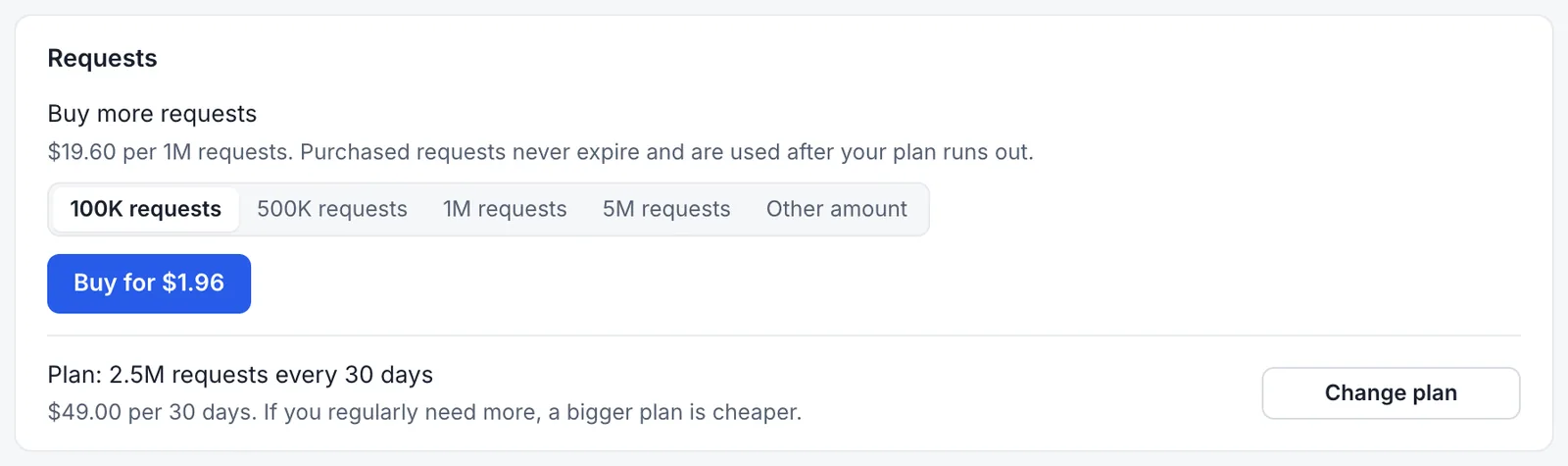
| Buy more requests | Adds from 100,000 to 5 million credits, or a custom amount. Purchased credits don’t expire and are used after your plan’s credits run out. |
| Change plan | Switches to a larger or smaller plan. If you regularly buy extra credits, a larger plan usually costs less. |
| Access | Change the username or password. For sticky sessions, -session-name is appended to the username. |
| Note | A private note of up to 500 characters. |
| Cancel | Irreversible: the proxies stop working immediately, and unused credits are refunded to your wallet. |
Buying more credits
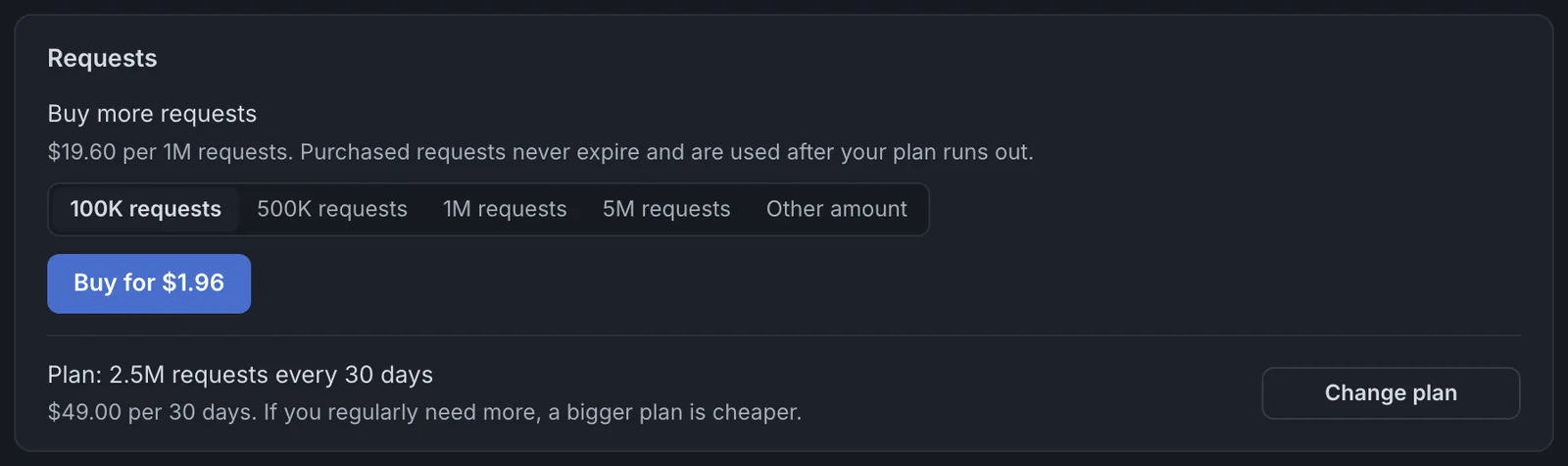
When your plan’s credits are running low before the renewal date, buy more on the Settings tab under Requests. Pick 100,000, 500,000, 1 million, or 5 million requests, or enter Other amount. The price is $19.60 per 1 million requests, and the button shows the total.
- Purchased credits don’t expire. They’re used only after the plan’s own credits for the period run out, and carry over to the next periods.
- The header forecast shows how long your credits will last at your current usage, so you can top up before they run out.
Changing the plan
If you regularly buy extra credits, a larger plan usually costs less. Change plan opens the list of plans with the number of requests and the price per 30 days; your current plan is marked.
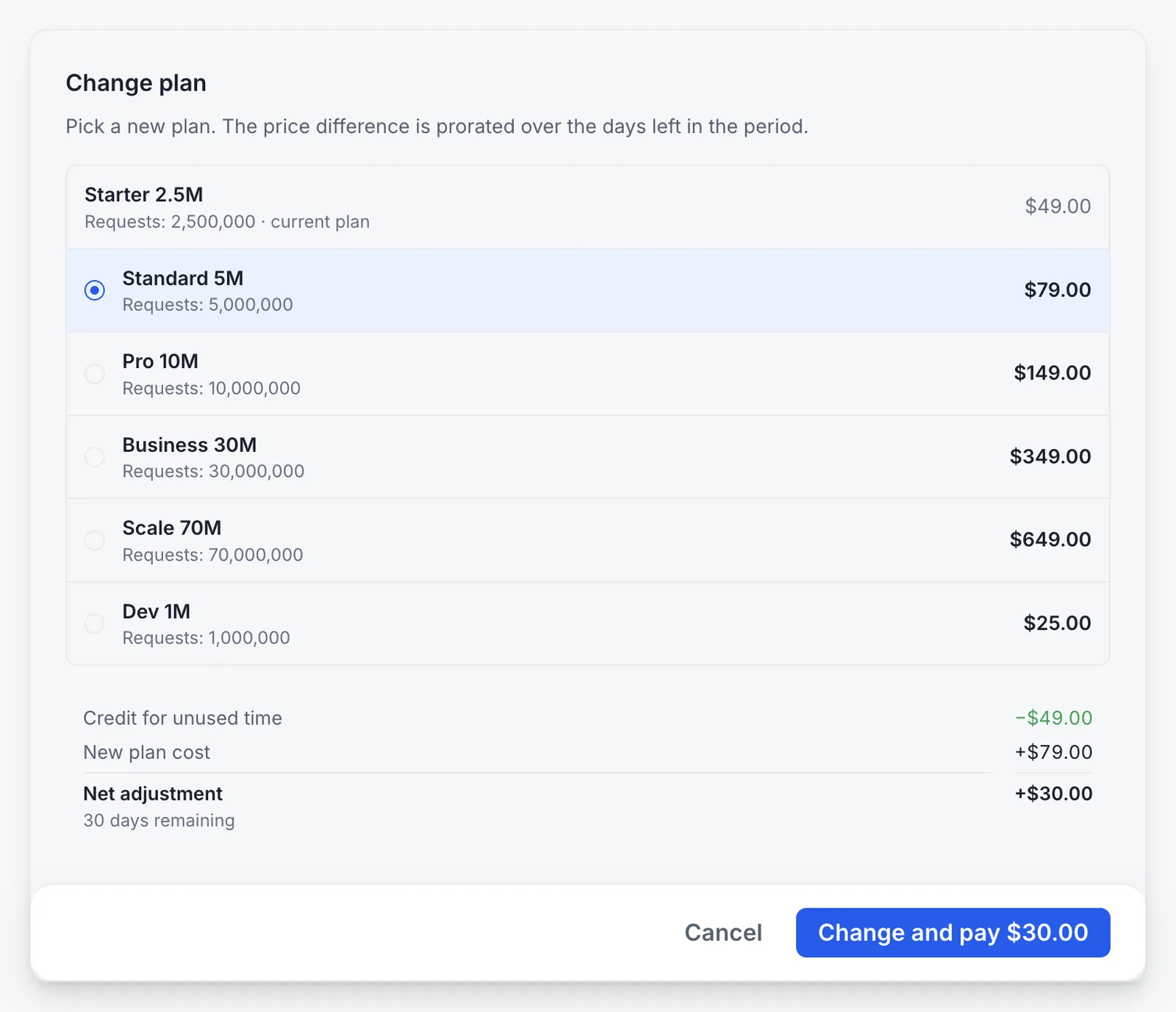
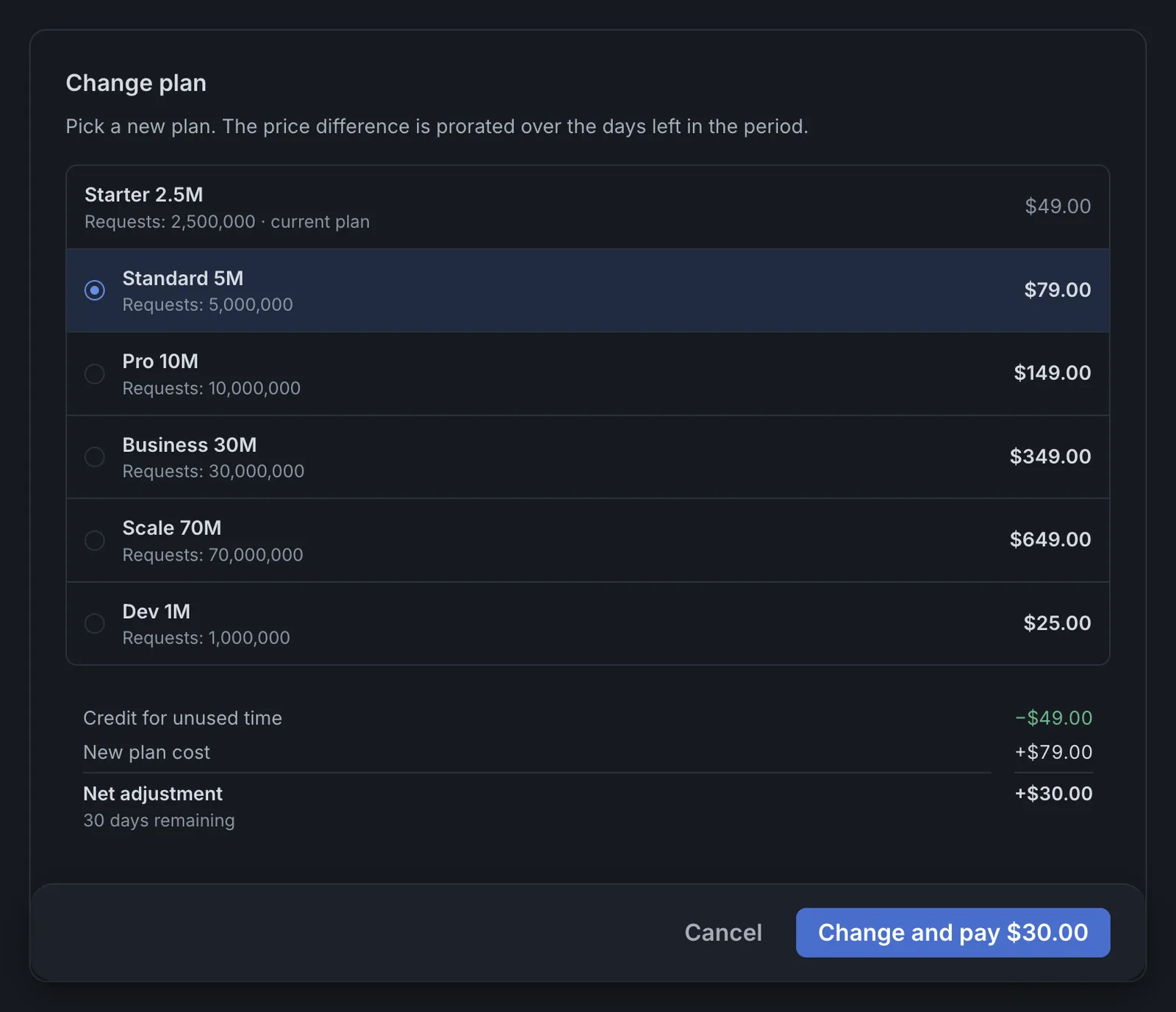
When you select a plan, the dialog calculates the price difference for the days left in the period:
- Credit for unused time: the unused part of your current plan;
- New plan cost: the new plan for the same remaining days;
- Net adjustment: the amount you pay now. The button shows it, for example Change and pay $30.00.
Nothing changes until you click that button. After the switch, the service renews at the new plan’s price.
Last updated: November 9, 2026.