 English
 Русский
How to add a proxy to the Multilogin anti-detection browser
If you bought a proxy from us, then before you start using it you have to bind the service to the IP address of the device with the Multilogin anti-detection browser installed on it. What this is and how to do it is described here.
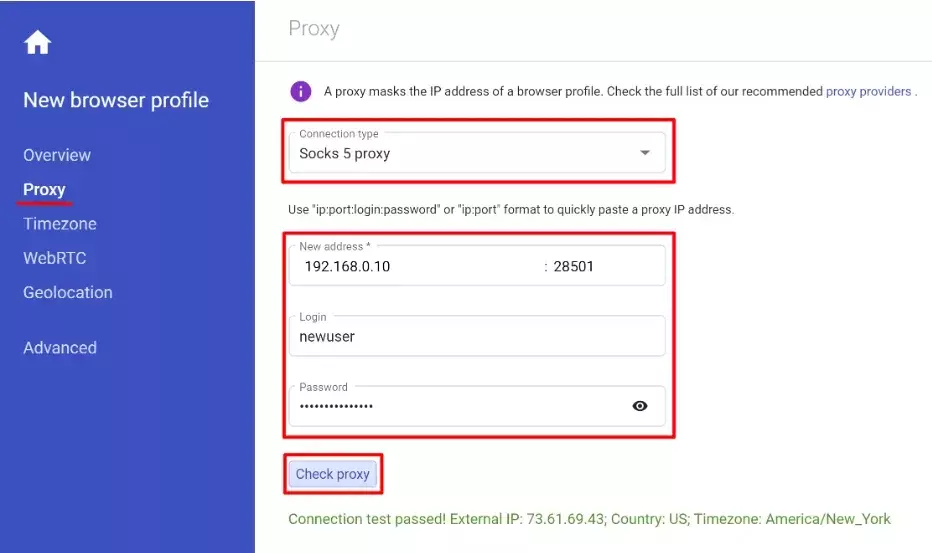
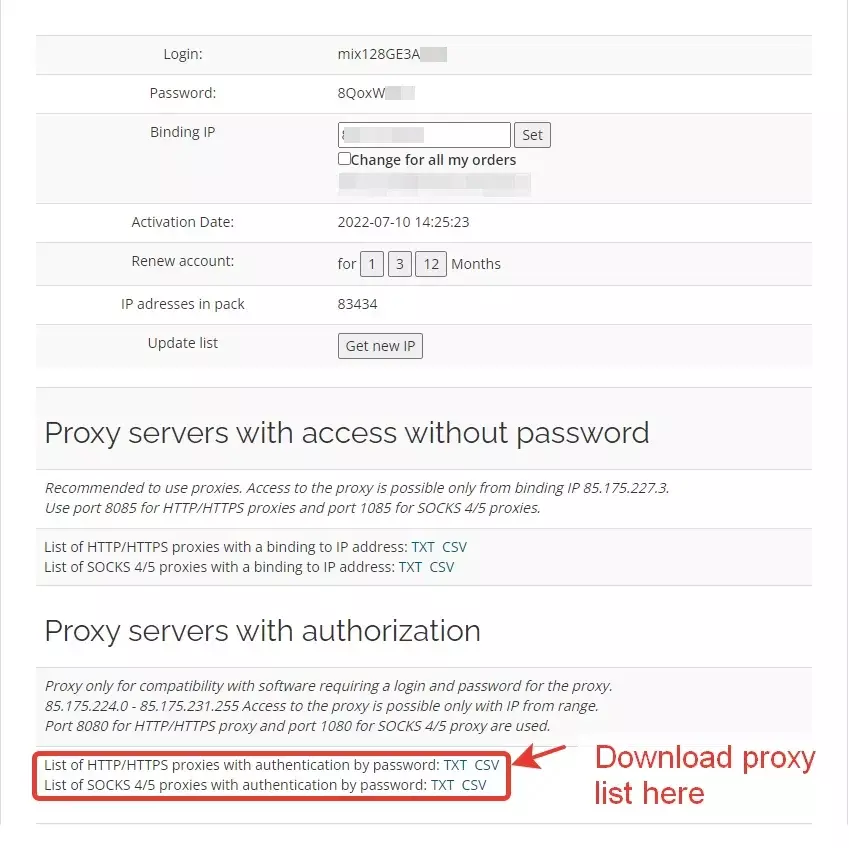
First, click "Create" and create a new profile, then go to "Proxy". In the column "Connection type" it is recommended to choose the type of proxy SOCKS5, because they provide maximum anonymity. All the necessary information about the purchased proxies you can see in your personal cabinet, in the services section - https://papaproxy.net/account_new/login?locale=en
New adress - here we write the desired IP from the service package.
Port - the field right after the IP address. We recommend using a proxy with authorization. Since we chose SOCKS5 for work and we will use authorization, our working port is 1080. The other port options are described in the active service on our website - https://papaproxy.net/account_new/login?locale=en
Other settings of the anti-detect browser, depending on your task. Click "Check proxy" and see that our proxy works.